Time Channel
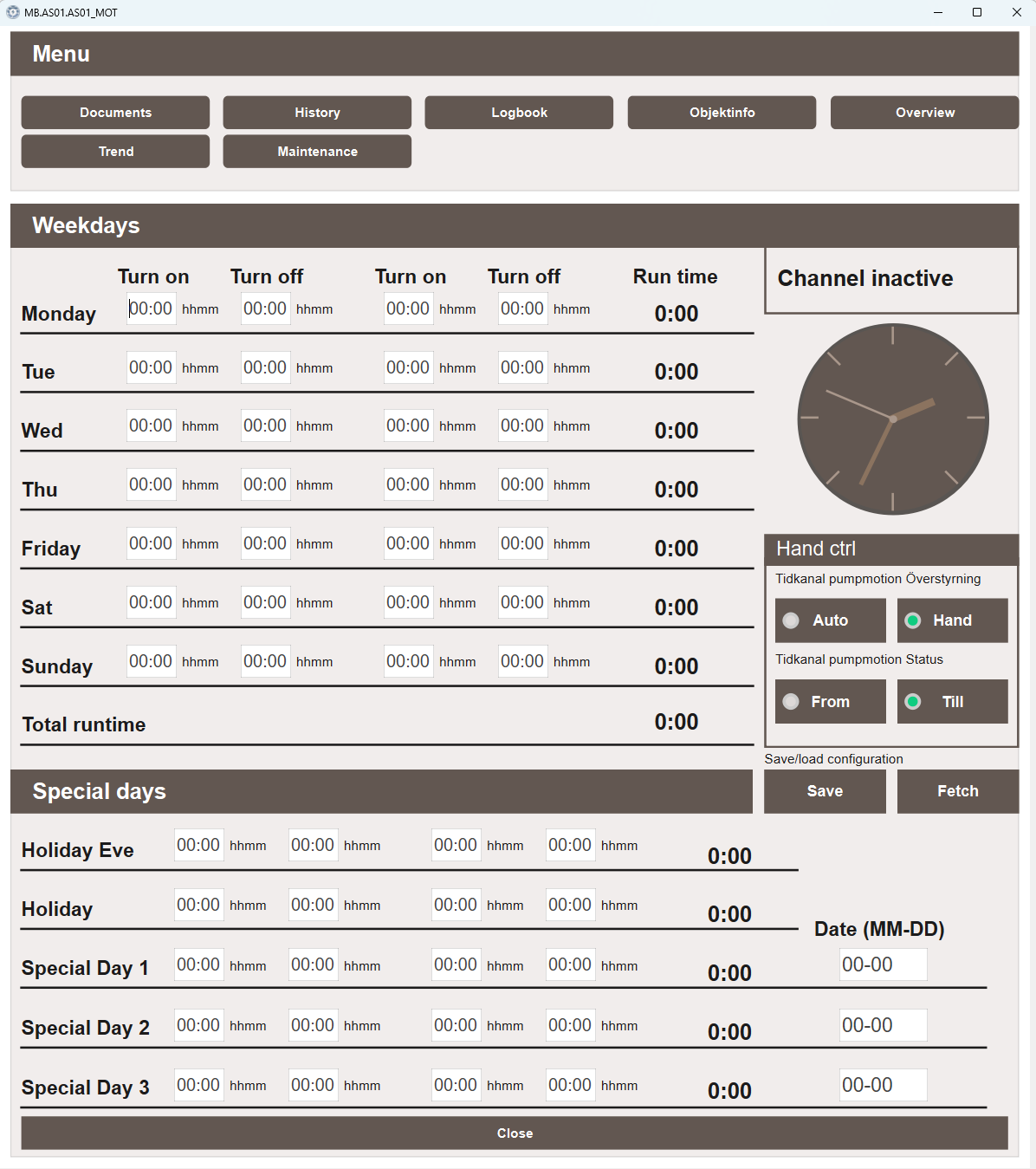
The Time Channel popup allows users to configure time-based schedules for the selected
object. Each day of the week can have up to two active time periods defined by Turn on
and Turn off times. It only appears in the Tab menu when the object has a signal
matching the _TK suffix.
Save and fetch
The Save and Fetch buttons allow Time Channel configurations to be stored and reused across the project.
Save stores the current schedule including all weekday and special day time slots to the database under the object's tag name. This means each object stores its own configuration independently, making it possible to maintain separate schedules for different objects.
Fetch opens a popup listing all saved Time Channel configurations. Select a configuration from the list to load it into the current object. This makes it easy to apply a previously saved schedule to a new object, copy schedules between objects, or restore a known configuration after changes.
Tip
Save a baseline configuration before making adjustments. If the new schedule does not work as intended, use Fetch to restore a previously saved state.
Profile storage
Profiles are handled by the scTimeChannel script and stored in the
TimeChannelProfile table in the Config database.
| Column | Purpose |
|---|---|
TagName |
The tag the profile was saved from. |
ProfileName |
The name given to the profile. |
Description |
The description given to the profile. |
jsonObj |
The captured schedule values. |
A profile captures every day type in one record: both time slots for each weekday, for Holiday Eve and Holiday, and for the three special days, together with the three special day dates.
Channel status
The top right panel displays the current status of the Time Channel, whether it is active or inactive.
Weekdays
The Weekdays section displays a schedule for each day of the week. Each day
supports two independent active periods, each defined by a Turn on and
Turn off time in hhmm format. The Run time column shows the total active
time for that day. A Total runtime row at the bottom shows the combined runtime
across all weekdays.
Special days
The Special days section allows different schedules to be defined for specific dates. The following special day types are available:
- Holiday Eve — the day before a public holiday
- Holiday — public holidays
- Special Day 1, Special Day 2, Special Day 3 — custom dates that can
be defined by entering a date in
MM-DDformat
Each special day supports the same two-period schedule as weekdays.
Holiday classification
The Holiday and Holiday Eve schedules only take effect if something tells the
PLC which days are holidays. The Calendar module supplies this. A day is marked by
creating a calendar event on it with the HOLIDAY or HOLIDAYEVE colour, and the
scHoliday script publishes the resulting daily classification to two internal
variables, isHoliday and isHolidayEve.
WideQuick only reports which day type applies today. The PLC's own time channel firmware still owns the schedule evaluation itself.
To enable it, connect isHoliday and isHolidayEve to the PLC the same way as any
other value, and mark the days in the calendar. The classification is a property of the
day, so one pair of variables serves every time channel rather than each one carrying
its own copy. See
Calendar — Configuring.
Hand ctrl
The Hand ctrl panel allows the Time Channel to be overridden manually:
- Auto — the Time Channel follows the configured schedule
- Hand — the Time Channel is controlled manually, ignoring the schedule
The current output status of the Time Channel is also shown:
- From — the Time Channel output is currently off
- Till — the Time Channel output is currently on
Default suffix aliases
The Time Channel popup uses a large number of suffixes to map each time slot to a specific signal. The key suffixes are:
| Suffix alias | Suffix | Description |
|---|---|---|
timechannelIsActive |
_TK |
Indicates whether the Time Channel is active |
timechannelManualControl |
_TK1_0 |
Switches between Auto and Hand mode |
timechannelManualCommand |
_TK4_5 |
Sets the output state in Hand mode |
Each day and time slot is mapped to a dedicated suffix following the pattern
_TK[register]_[index]. All time slot suffixes are writable.