Automatic Scaling
Requirements
The following scripts are required to use Automatic Scaling and all related functionality covered in the Automatic Scaling guides:
scWMscAlert
WideQuick MOD automatically scales the UI to fit any screen size or browser window. This means a project can run on different displays without requiring layout changes.
The scWM script handles all scaling. It monitors the main window every 500 ms and calculates a scaling factor based on a reference resolution of 1920×1080. The current factor is always available as scWM.scalingFactor.
Main View Scaling
The main view scales automatically, no configuration is needed. scWM continuously applies the correct zoom level as the window resizes. This also works on WideQuick® Remote clients and WideQuick® Web clients. Web clients scale relative to the browser window rather than the screen resolution.
Popup Scaling
Popups do not scale automatically. To scale a popup proportionally to the main view and place it on screen, call scWM.scaleAndPlacePopup() in the popup Workview's onLoad script. To find the onLoad script, right-click the Workview in the project tree in WideQuick® Designer, select Properties, open the Action tab and double-click load.
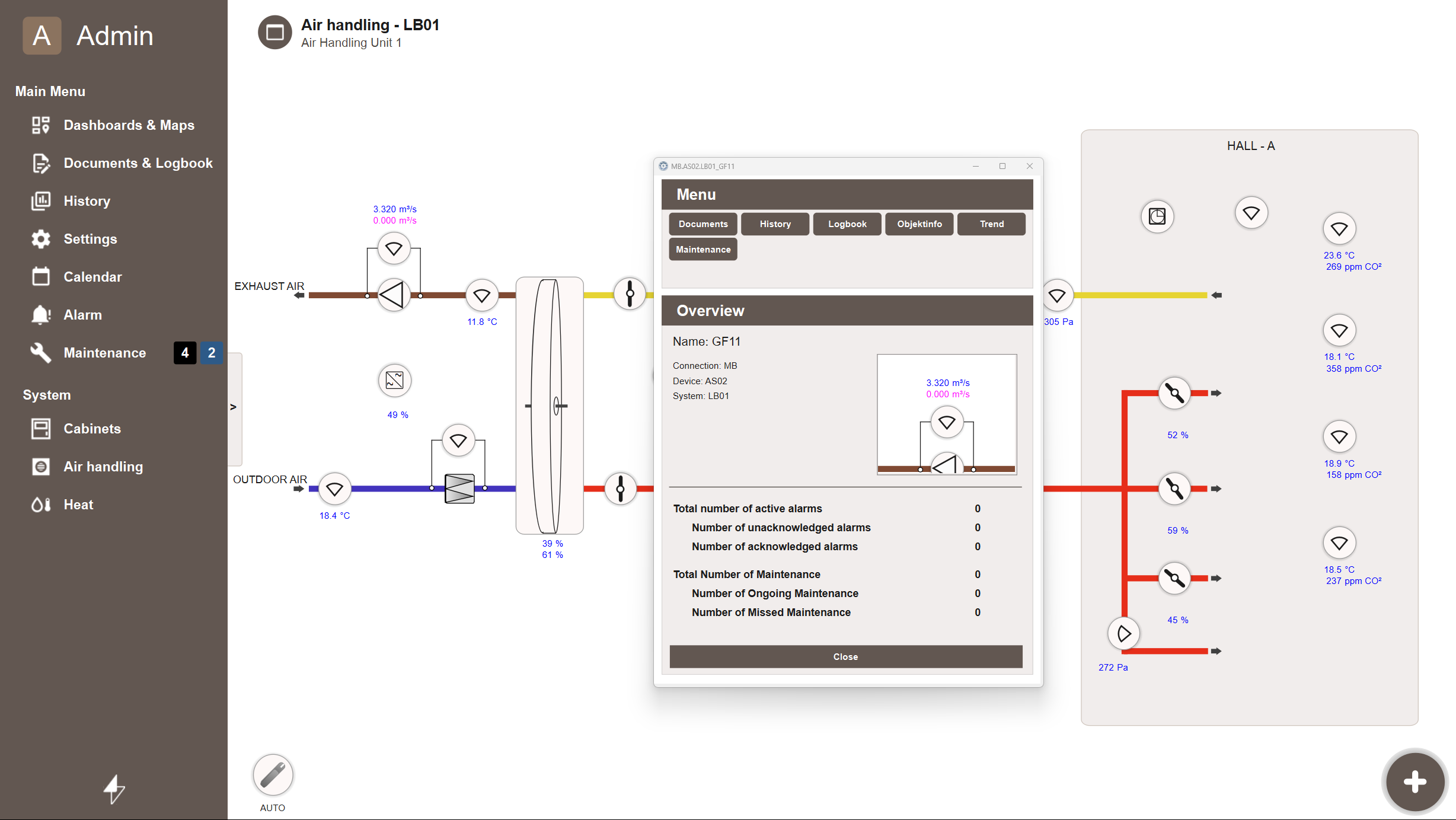
By default the popup is centered within the main content area, excluding the navigation menu. An optional alignment argument positions it along a screen edge instead:
| Alignment | Description |
|---|---|
| (none) | Centered on screen (default) |
"bottom" |
Anchored to the bottom of the screen |
"top" |
Anchored to the top of the screen |
"left" |
Anchored to the left of the screen |
"right" |
Anchored to the right of the screen |
Enabling Pannable/Zoomable
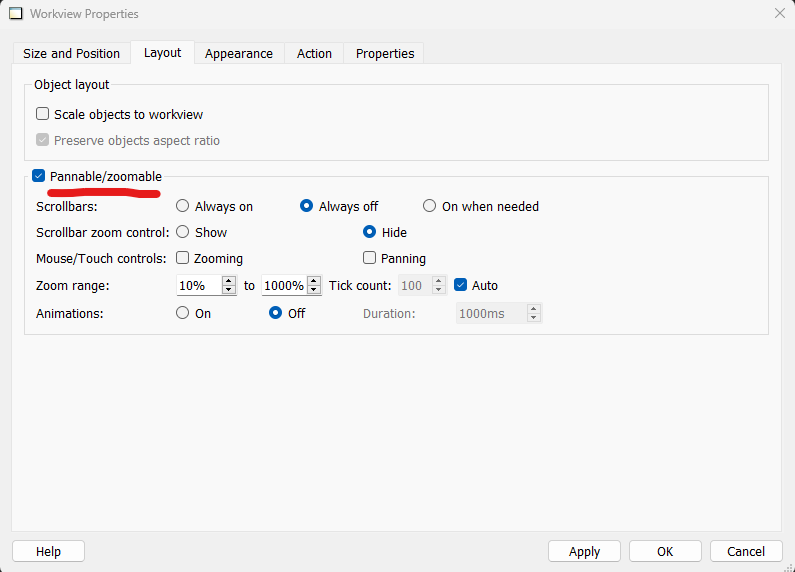
Popup scaling requires Pannable/Zoomable to be enabled on the popup Workview. In WideQuick® Designer, right-click the Workview in the project tree and select Properties. Open the Layout tab and check Pannable/Zoomable.
Placement Without Scaling
For smaller popups that do not need to resize, use scWM.placePopup() to center the popup without scaling it:
Reloading a View
To force a Workview to re-initialize, use scWM.reloadPage():
This briefly switches to a dummy view and back, forcing the target view to reload. Useful when a view needs to reflect configuration changes without navigating away manually.
Using the Scaling Factor in Custom Scripts
scWM.scalingFactor exposes the current scale as a number between 0 and 1 (or higher on large displays). Any custom script that needs to account for the current zoom level can read it directly:
This is used internally by the map scripts to recalculate element positions when the window resizes.