Migration Guide - BMS
Step-by-step guides for upgrading between WideQuick BMS versions. The newest migration is listed first and expanded; older migrations are collapsed.
WideQuick BMS 2026.1.1 → 2026.1.1.2
Released 2026-10-06
Migration steps
Prerequisites
- WideQuick BMS 2026.1.1 (Template or Demo project)
- WideQuick V14 or later installed
Migration steps
-
Download the resource package that matches your project:
- RemoteFixBMS.1.1_Template.wqrc for the Template project
- RemoteFixBMS.1.1_Demo.wqrc for the Demo project
-
Open your
WideQuick_BMS_Template_2026_1_1orWideQuick_BMS_Demo_2026_1_1project in WideQuick® Designer and import the resource package. -
In WideQuick® Designer, click the Resources button to open the resource panel.

In the resource panel, navigate to Files → Import from... and select the resource package from the downloaded files.
Once the resource is loaded, set all files to Replace so that the existing files in the project are overwritten with the updated versions. The gif below shows how to do this:
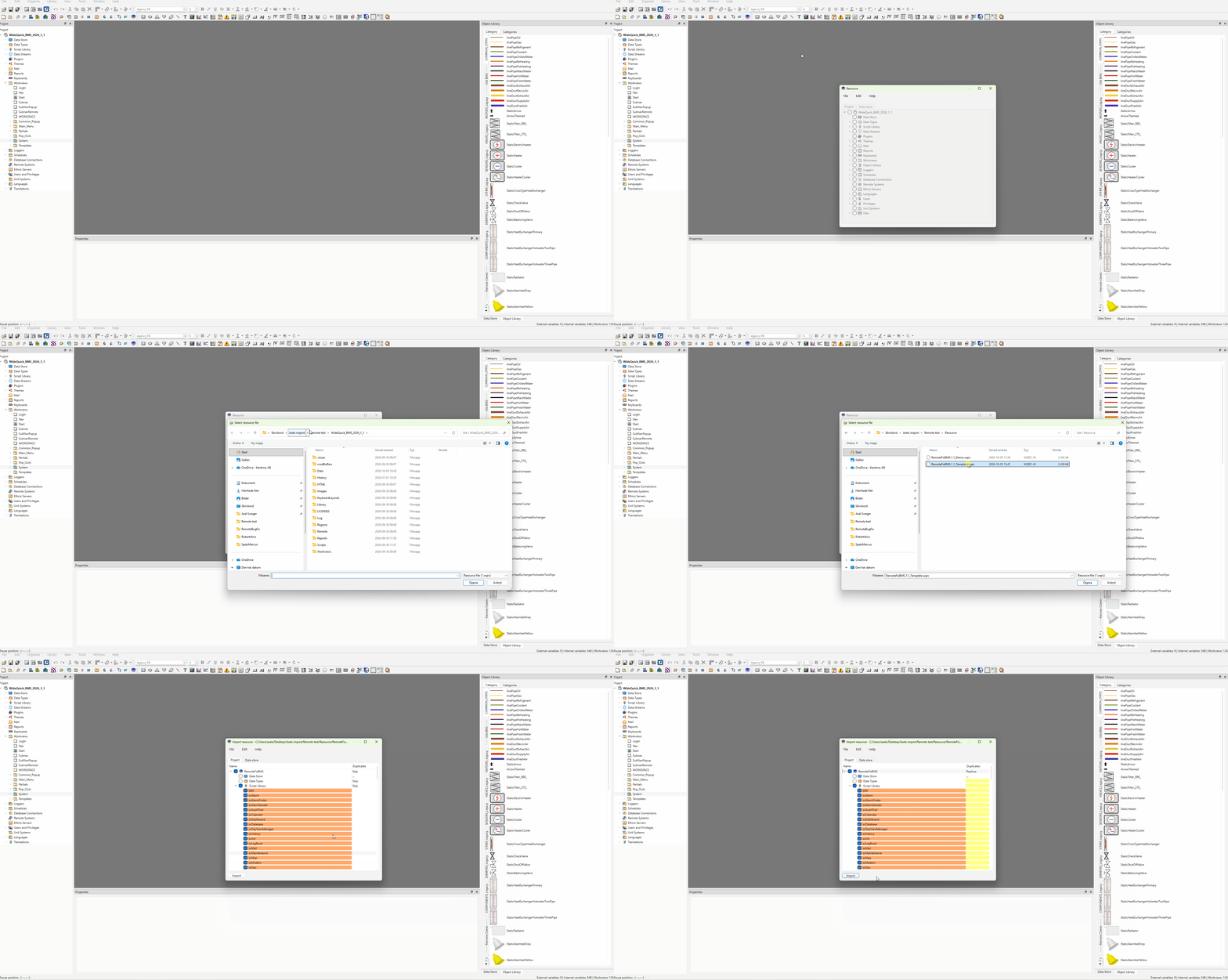
When all files are set to Replace including the ones in the Data Store, click Import to start the process.
Warning
Once Import is clicked, do not interact with the application until it has finished. If it crashes, simply run the import again.
-
Start the project in WideQuick® Runtime.
-
If the project connects to remote systems, open Remote Systems in WideQuick® Designer and enable Auto connect for each remote system whose alarms should be included in the alarm counters. Without it, the connection to a remote system is only open while a view uses it, such as the alarm list.
-
If alarm groups have been added to the project, open each one in WideQuick® Designer and replace its
Measurescript with:The earlier script, which calls
scAlarmFinder.goToAlarmwithapp.alarmView, does not work on the web client. The alarm groups delivered with the Demo project are updated by the resource package. -
If the project has views of its own with an alarm list, add the following to each view's Load script so that Gå till larm works from that view. Replace
Alarm1with the name of the view'sAlarmobject:
Note
Gå till larm on an alarm from a remote system opens that system in WideQuick® Remote and navigates to the alarm there. This requires the remote system to run WideQuick BMS 2026.1.1.2 as well.
Note
Replace overwrites the project's versions of the files in the package. If you have made your own changes to any of them, merge those changes back after the import. The changed files are listed in the release notes.
Note
Script functions are now called through their script library. Your own scripts
and views that call the framework's functions by their old global names must use
the library-qualified name instead, for example scSmartPopup.smartPopup,
scAlarmFinder.goToAlarm(...) and scWorkviewAnimation.AnimationHandler.
WideQuick BMS 2026.1.0 → 2026.1.1
Released 2026-06-26
Migration steps
Prerequisites
- WideQuick BMS 2026.1.0 (Template or Demo project)
- WideQuick V14 or later installed
Migration steps
-
Download the resource package Migration BMS.2026.1.1.
-
Open your
WideQuick_BMS_Template_2026_1_0orWideQuick_BMS_Demo_2026_1_0project in WideQuick® Designer and import the resource package. -
In WideQuick® Designer, click the Resources button to open the resource panel.
In the resource panel, navigate to Files → Import from... and select Migration BMS.2026.1.1 from the downloaded package.
Once the resource is loaded, set all files to Replace so that the existing files in the project are overwritten with the updated versions. The gif below shows how to do this:
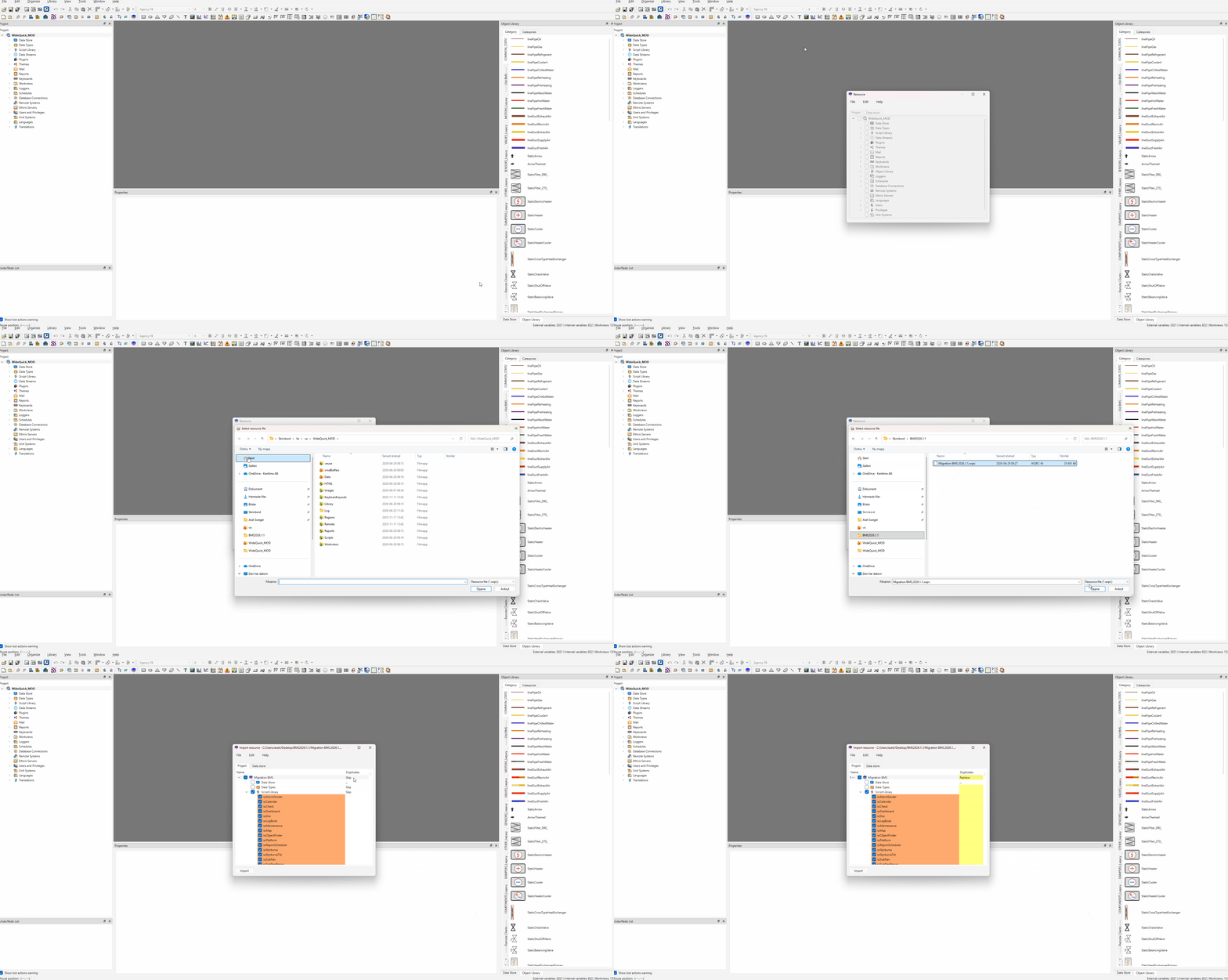
When all files are set to Replace including the ones in the Data Store, click Import to start the process.
Warning
Once Import is clicked, do not interact with the application until it has finished. The process takes approximately 1 minute. If it crashes, simply run the import again.
-
Start the project in WideQuick® Runtime.
-
Close the application and start it again.
-
After the second restart all changes are applied. The
scCheck.jsscript can now safely be deleted from the project. This script is a one-time migration script that runs on startup to add missing suffix aliases, update user privileges, and correct database connection settings from the 2026.1.0 release. It is no longer needed once the migration is complete.
Note
The 2026.1.0 Template and Demo projects shipped with a bug where the Larm,
Maintenance, and History database connections were missing their database
name. scCheck.js corrects this automatically, but only if the connections are
still in their original bugged state. Any database connections that have already
been configured by the integrator will not be touched.