Audit Trail - Get Started
Requirements
The following scripts are required to use Audit Trail and all related functionality covered in the Audit Trail guides:
scAuditTrailscAlert
The Audit Trail records changes to selected DataStore variables and maintenance tasks. It is available under History → Logs → Audit Trail.
Viewing the Log
Navigate to History → Logs → Audit trail → Audit trail.
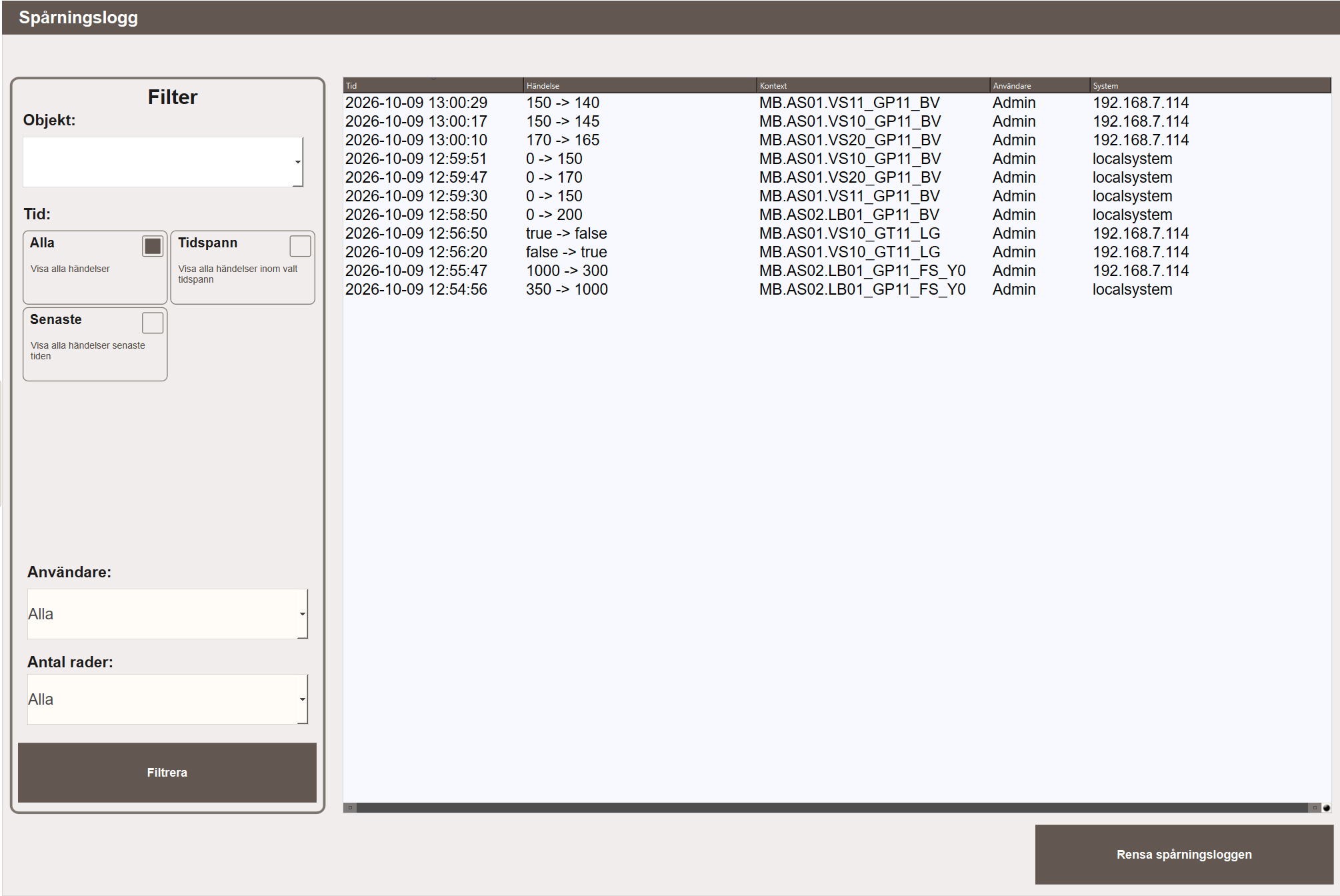
The log shows all recorded changes with the following columns:
- Time — when the change occurred.
- Event — the old value and new value, shown as
old → new. - Context — the full variable path in the Data Store.
- User — the user logged in on the client where the change was made.
- System — where the change was made: the local application, or the address of a web or remote client.
Each change is logged once, by the application where the user made it. Changes without a user, for example from scripts, drivers or schedules, are logged by the local application.
Note
The audit trail decides where a change was made from each client's recent user activity. A web client running in a browser on the same computer as the application shares that activity, so a change made there can be logged twice. Web clients on other computers are not affected.
Use the Filter panel on the left to narrow down the log:
- Object — filter by a specific object or variable path.
- Time — show all events, events within a selected time span, or the most recent events only.
- User — filter by a specific user.
- Number of rows — limit how many entries are shown.
Click Filter to apply. Click Clear audit trail to permanently delete all log entries.
Maintenance Change Log
Navigate to History → Logs → Audit trail → Audit Trail - Maintenance.
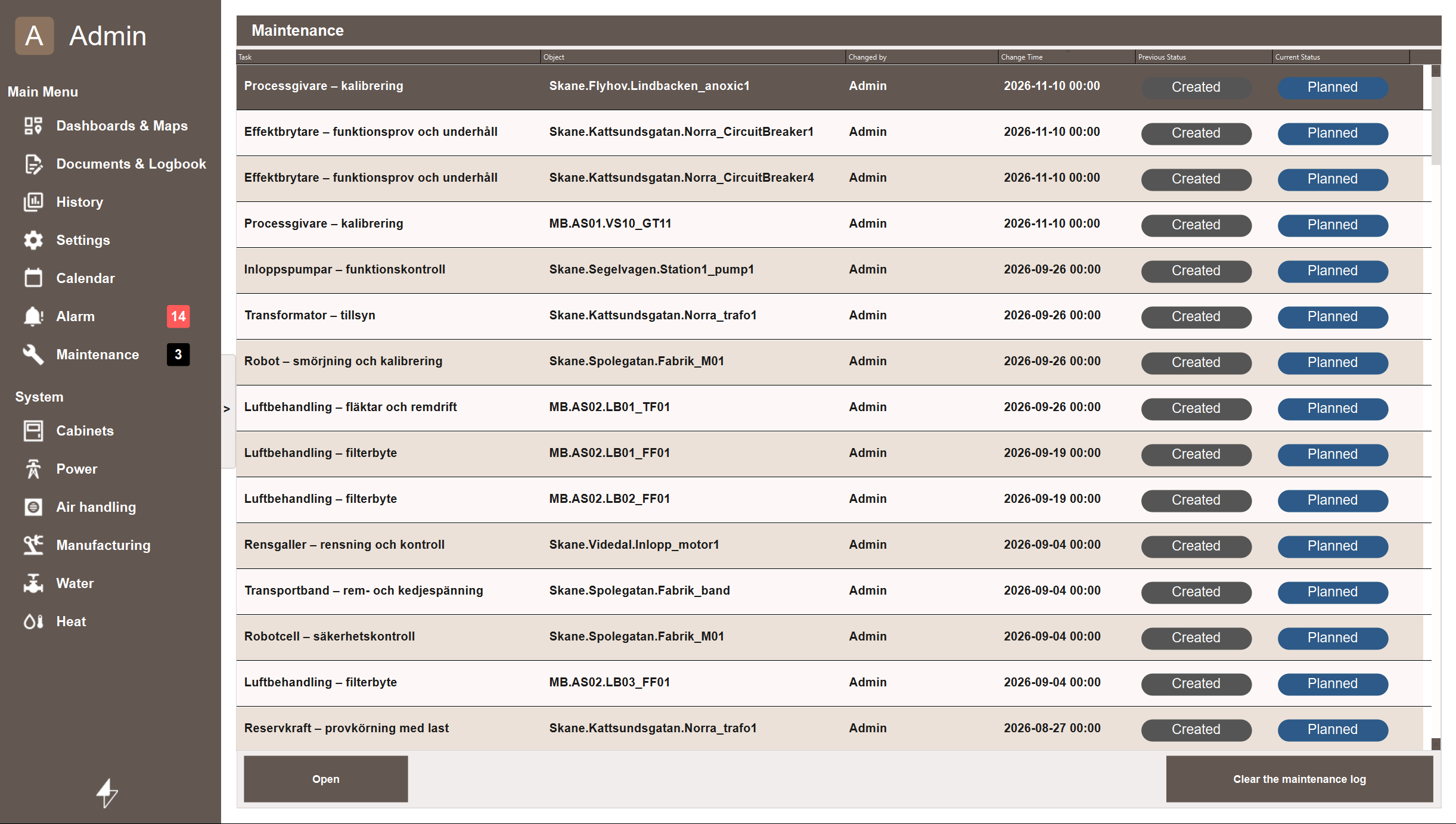
This view shows a full history of changes to maintenance tasks. Every status change, deadline update, priority change, assignee change and description edit is recorded automatically. No configuration is needed.
Each row shows:
- Task — the maintenance type.
- Object — the object the task belongs to.
- Changed by — the user who made the change, or System for automatic changes such as missed deadline transitions.
- Change Time — when the change occurred.
- Previous Status — the status before the change.
- Current Status — the status after the change.
Select a row and click Open to see the full before/after detail for that change, including assignee, priority, deadline and description.
Clearing the maintenance log
Clear the maintenance log removes every entry from the maintenance change log. A confirmation dialog is shown first, and the action requires the Config privilege.
Clearing the log cannot be undone
The action deletes the entire change history at once. The maintenance tasks themselves are untouched, but the record of who changed what, and when, is gone. Export or archive anything needed for traceability before clearing.
Next Steps
- Configuring — choosing which variables to track