Documents - Get Started
Requirements
The following scripts are required to use Documents and all related functionality covered in the Documents guides:
scDocscLinkingscPrototypesscThemesscAlert
The Documents module is available under Documents & Logbook → Documents in the main menu. The Documents - List view is the main entry point. It lists all documents in the system, where they can be added, previewed and managed.
Files view
The view is split into two panels. The left panel shows a file tree with two categories: Local files and Online files. Local files are stored on the server; online files are links to external URLs. The right panel shows the preview for the selected file. On WideQuick® Web, a third category appears for files that cannot be opened in the browser.
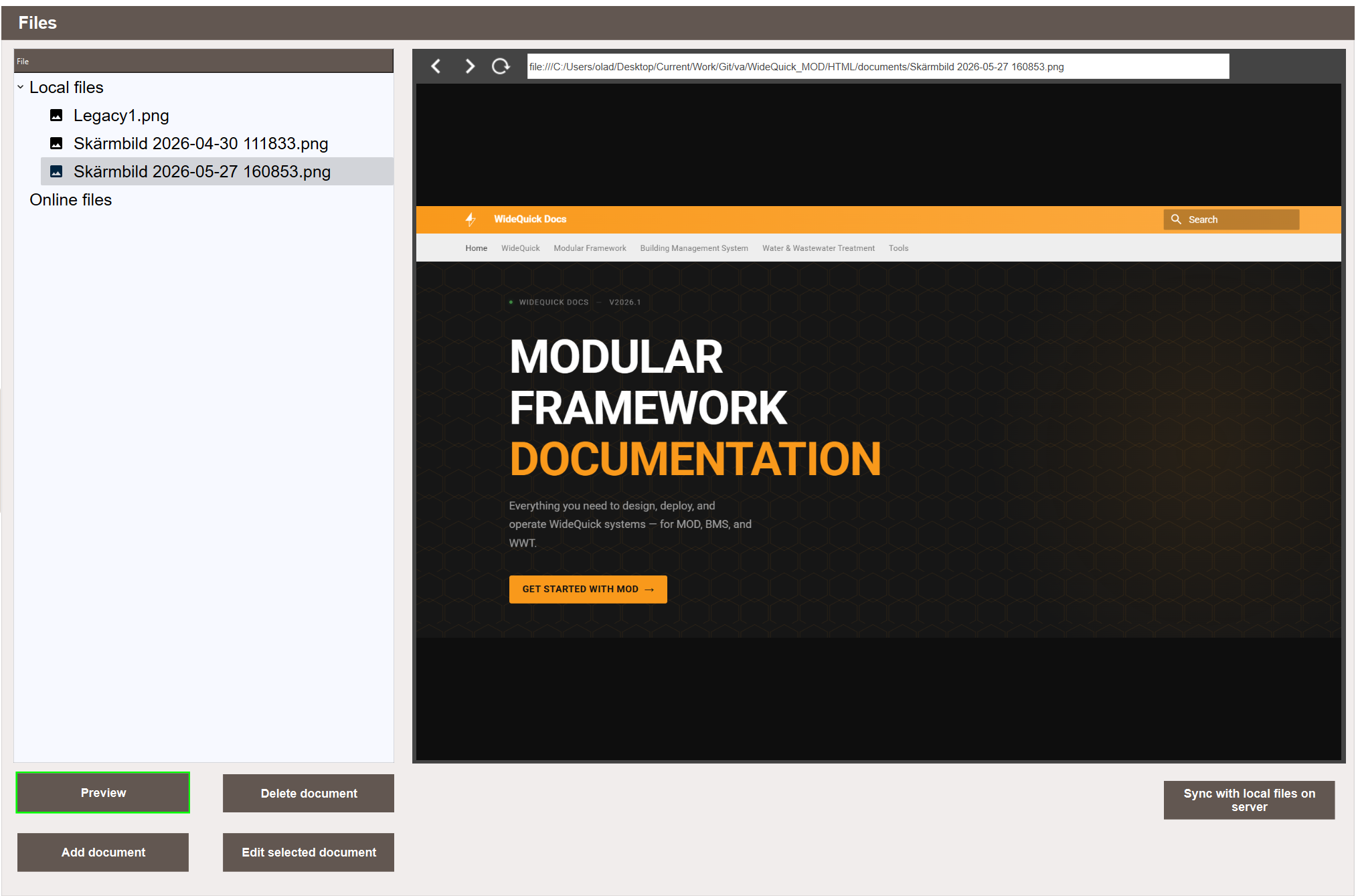
The following actions are available at the bottom of the view:
- Preview — opens the selected file in the preview panel.
- Add document — opens the upload dialog to add a new document.
- Delete document — permanently removes the selected document.
- Edit selected document — rename the selected document.
- Sync with local files on server — scans the documents folder on the server and updates the list to match. See Syncing with the filesystem.
Uploading a local file
- Click Add document.
- Select the Upload file tab.
- Click the drop zone or drag files into it to add them to the queue.
- Optionally click a file name in the queue to rename it before uploading.
- Click Upload files.
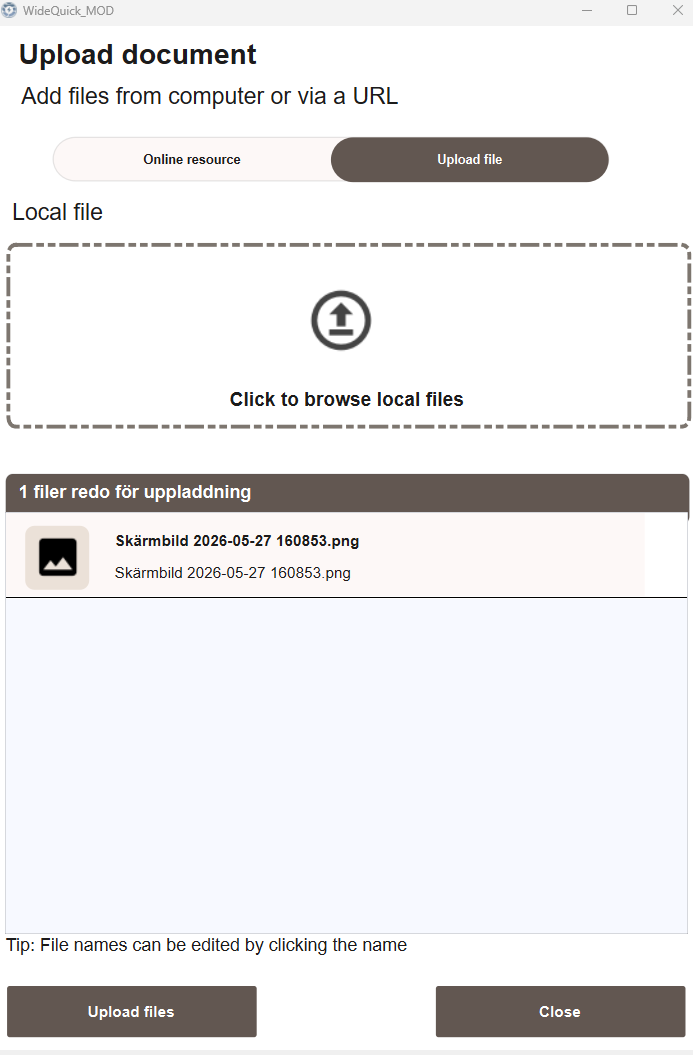
The files are copied to the server and added to the document list under Local files.
Adding an online resource
- Click Add document.
- Select the Online resource tab.
- Enter the URL in the Document URL field.
- Enter a display name in the Document name field.
- Select the file type using the icon selector.
- Click Add.
- Click Upload files.
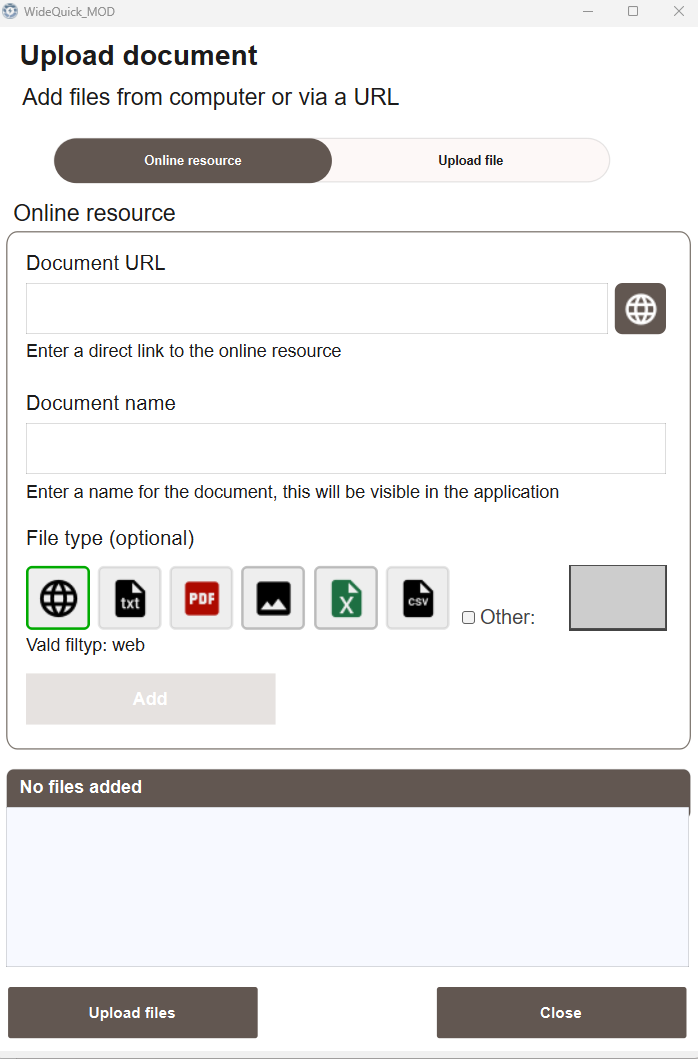
The resource is added to the document list under Online files. Only the URL is stored. No file is downloaded to the server.
Previewing a document
Select a file in the left panel and click Preview to load it in the preview panel.
Most file types can be previewed inline. Images, PDFs and web pages render directly. On WideQuick® Web, Office files (Word, Excel, PowerPoint) are not previewable in the browser and are grouped separately in the file tree.
Next Steps
- Configuring — linking documents to objects and keeping files in sync
- Extending — privilege reference