Calendar - Configuring
Events
Custom calendar events are created, edited and deleted directly in the calendar. They are stored in the maintenance database alongside maintenance data.
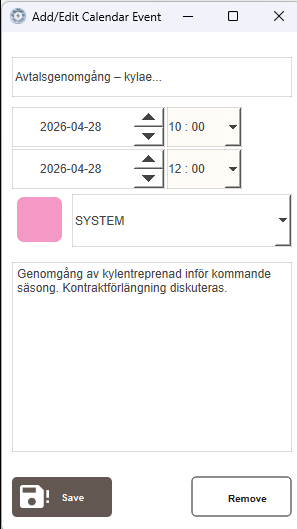
When creating or editing an event, a color can be selected from a fixed set of options: ENERGY, POWER, SYSTEM, SAFETY, SECURITY, HVAC, WATER, HOLIDAY, HOLIDAYEVE and DEFAULT. These colors are defined in the CalendarColors theme in Themes.kdat.
HOLIDAY and HOLIDAYEVE carry meaning beyond appearance. See Holidays and Holiday Eves.
Editing an event:
Click an existing event to open the Add/Edit Calendar Event popup. All fields can be updated. Click Save to apply the changes.
Deleting an event:
Open the event and click Remove. This removes the event permanently.
Maintenance Events
Maintenance deadlines from the Maintenance module are automatically shown in the calendar. They are read-only and cannot be edited or deleted from the calendar. Changes must be made in Maint. - List.
Each maintenance event is displayed on the day of its deadline. The color is set automatically based on the task's current status and cannot be chosen manually. These colors are defined in the MaintenanceColors theme in Themes.kdat and are separate from the colors used for custom calendar events.
Clicking a maintenance event opens a popup showing the object, status, deadline and maintenance type. Click Open editing to navigate directly to that task in Maint. - List.
| Status | Color |
|---|---|
| Planned | Yellow |
| Missed | Dark red |
| Stopped | Gray |
| Reminder | Muted olive |

Reminders
A reminder event can appear in the calendar a set number of days before a maintenance deadline. The reminder appears as a separate entry with the color Reminder, distinct from the deadline event itself.
Reminders are enabled by default for tasks created without a template. Tasks created from a template use that template's reminder setting, which defaults to off. The default reminder offset is 3 days. See Extending for how to change these settings.
Holidays and Holiday Eves
A day is marked as a holiday by creating an ordinary calendar event on it and choosing the colour HOLIDAY. A holiday eve is marked the same way with HOLIDAYEVE. No separate dialog or import is involved.
The event is snapped to whole days when it is saved, because a day either is a holiday or is not. A start and end time entered on the grid is widened to cover the days the event touches.
The two are kept apart deliberately. A holiday eve is usually a shortened working day rather than a closed one, so a plant often needs a different schedule for it than for the holiday itself.
Multi-day holidays work as expected. An event spanning several days marks every day it covers, not only the day it starts on.
Handing the classification to a PLC
The calendar publishes today's classification to two internal variables in the Data Store:
| Variable | Meaning |
|---|---|
isHoliday |
True when today is covered by a HOLIDAY event. |
isHolidayEve |
True when today is covered by a HOLIDAYEVE event. |
Both are plain boolean variables and can be connected to an output the same way as any other value, so a PLC or DUC can read the day type and run its own schedules accordingly. The classification is a property of the day, so one pair of variables serves every schedule rather than each time channel carrying its own copy.
The variables are written at startup and refreshed on each sync. Marking a day in the calendar therefore takes effect on that day without further action.
The calendar classifies the day, the PLC decides what to do
The hand-off reports only which day type applies today. Which outputs change, and when, stays with the PLC's own schedule logic.
Importing a Calendar
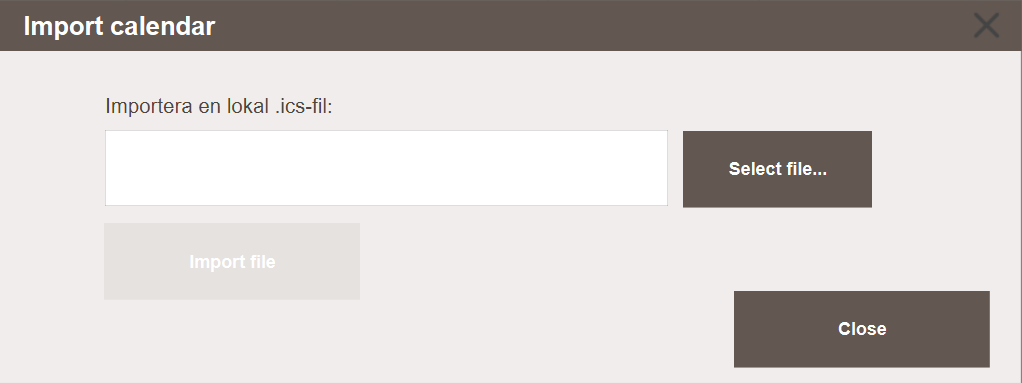
Import opens the Import calendar dialog, which adds events from a local .ics file. Click Select file... to pick a file from disk, then Import file.
Each imported file becomes a subscription. Every event it contributed is tagged with it, so an import can be recoloured or removed as a unit without affecting events created directly in the calendar or events from another file.
An import is rejected if its name or its path matches one that already exists. The comparison ignores surrounding whitespace and a trailing slash.
An imported file is read once
A file is read at import and is not re-checked afterwards. Editing or replacing the .ics file on disk does not update the calendar. Import the file again to pick up the new content.
A database carried over from a build that had the plugin can still hold subscriptions of those types. They are skipped during a sync and a note is written to the log. Their events remain in the calendar until the subscription is removed.
Managing Imported Calendars
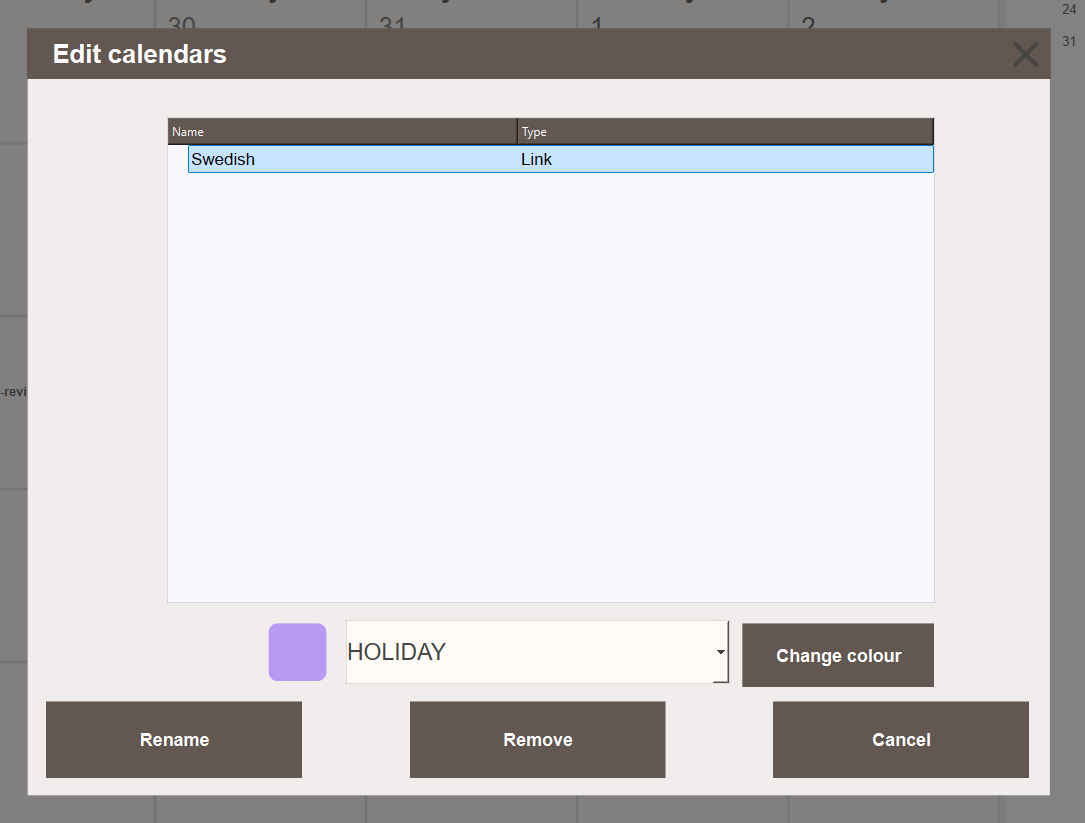
Edit opens Edit calendars, which lists every import with its name and type. Select one to Rename it, Remove it, or pick a colour from the combo box and click Change colour. Removing an import deletes its events from the calendar. Events created directly in the calendar are not affected.
Imports are created with the DEFAULT colour.
Sync re-reads every import immediately. Since a file import is read at import time, this matters mainly for tidying up an existing database rather than for picking up new content.
Choosing Which Calendars Are Shown
Filter opens Calendar filter, which controls which imports are drawn in the calendar. The setting applies to all clients rather than to one user. Events created directly in the calendar are always shown and are not affected by the filter.
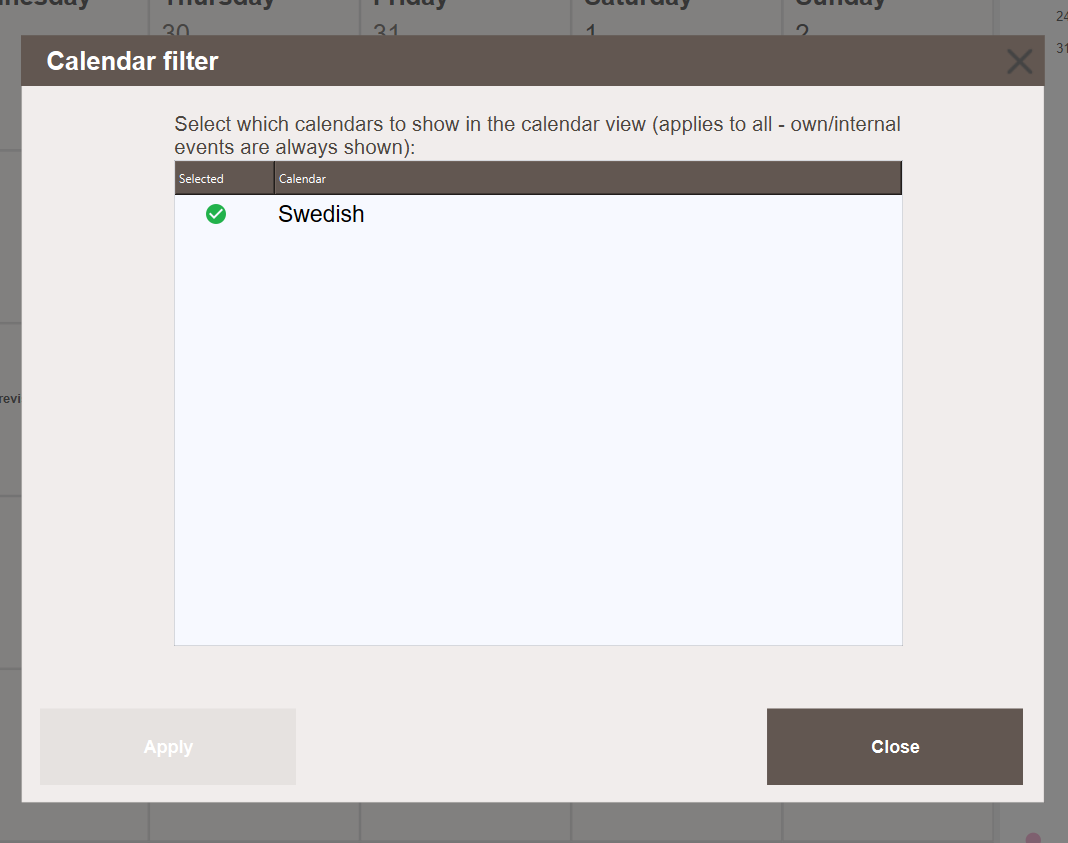
Tick the calendars to show and click Apply.
Exporting a Calendar
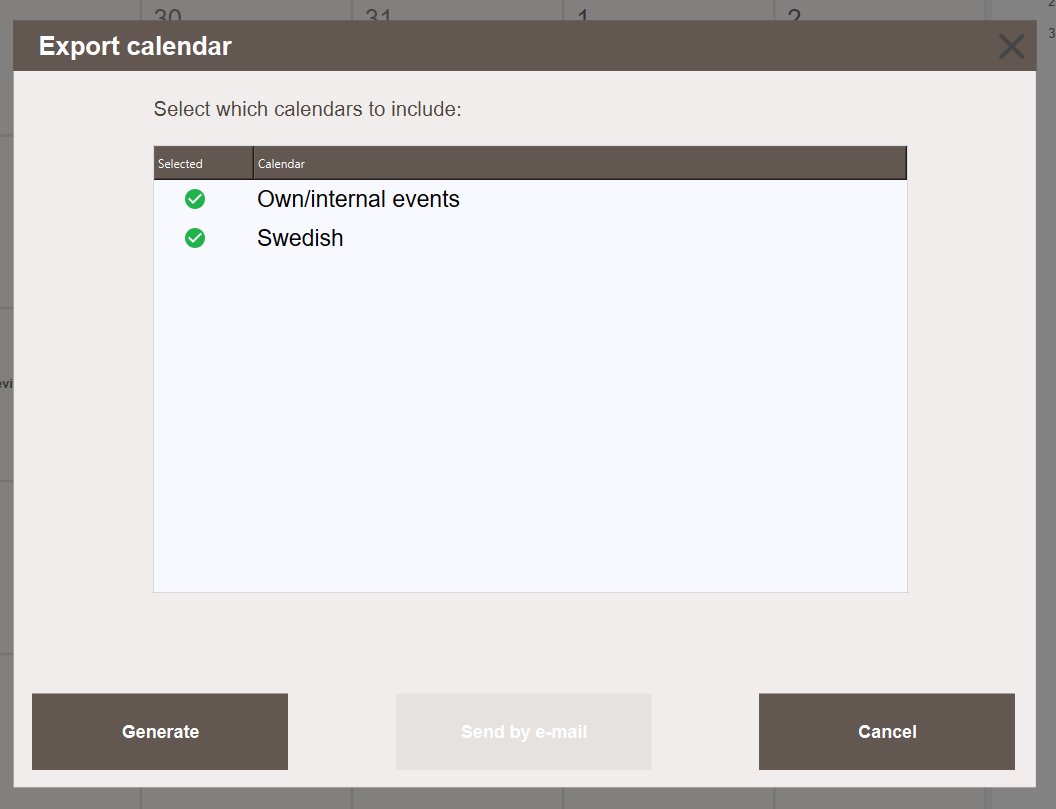
Export opens Export calendar. Tick which calendars to include, then either Generate to write an .ics file, or Send by e-mail to send the export as an attachment.
Own/internal events is listed alongside the imports, so the events created directly in the calendar can be included or left out independently. Holiday and holiday eve events are part of that group, so a marked year can be exported and carried to another installation.
Next Steps
- Extending — reminder configuration, the holiday variables and the subscription table