Logbook - Configuring
What an Entry Is Filed Against
Every entry is anchored to one of three things. The anchor is what decides where the entry appears in the topic tree, and it is chosen by where the entry was created rather than by typing a path.
| Anchor | Created from | Example |
|---|---|---|
| A workview | The SpeedDial logbook button on a process view, or a view node in the tree | System/MySystem/Station1/Pump1 |
| An object | The Logbook tab of an object popup, or an object node in the tree | Connection.Device.System_ObjectName |
| A topic of its own | Typing a path that matches neither | Optimisation/2026-03/Night operation |
The third kind covers notes that belong to no single piece of equipment. A commissioning thread, a seasonal optimisation discussion or a project log is filed under a path of the operator's own choosing and appears in the tree exactly as written, in both tree modes.
An entry anchored to a view or an object can still carry a path of its own below it. A note filed on Connection.Device.System_ObjectName with the sub-path Trend is anchored to the sensor and grouped under a Trend node beneath it, so several notes about the same object can be kept apart.
Topics are not registered in advance
A topic exists because an entry uses it. There is no list of topics to maintain, and removing the last entry under a node removes the node.
How the Two Trees Are Built
The same entries are arranged two ways, and the toggle above the tree switches between them. Neither arrangement filters anything out.
Workview mode
The tree follows the folder structure of the process views, so it reads like the navigation menu.
A note filed on a view sits on that view's node. A note filed on an object sits under every view the object is drawn in, as a leaf named after the object.
Signal mode
The tree follows the tag path, so it reads like the Data Store.
A note filed on an object sits on its tag. A note filed on a view sits under the tags drawn in that view, because a view is only meaningful in this arrangement through the equipment it shows.
Why a note appears in more than one place
The two arrangements are linked through the object index, which records which objects are drawn in which views. That link is followed in both directions:
- A note on an object appears under every view that object is drawn in. A pump shown in both an overview and a detail view carries its notes in both.
- A note on a view appears under the objects drawn in that view.
- A note on a piece of equipment, rather than a single tag, appears wherever anything belonging to that equipment is drawn.
This is deliberate. A note about a pump is relevant in every view an operator might meet that pump in, and a note about a view is relevant to the equipment it covers.
A note on a cabinet or a device reaches a long way
The same rule applies at every level of the tag path. A note filed on a device such as Connection.Device belongs to every view that shows anything from that device, which can be most of the plant. Filing a note about a physical cabinet on the view that represents it keeps it where it belongs. Filing it on the device tag spreads it across every view fed by that cabinet.
Objects that share a name
Two objects drawn in the same view can carry the same name, for example a Pump1 belonging to System1 and another belonging to System2. In workview mode both would otherwise claim the same leaf.
When that happens, the leaf label is extended with as much of the tag as is needed to tell them apart, giving System1_Pump1 and System2_Pump1. Objects whose names are already unique in their view keep their plain name.
Contexts
Contexts are named groupings that can be used to categorise entries across topics. Examples: Operations, Commissioning, Alarms. The default context General is always available.
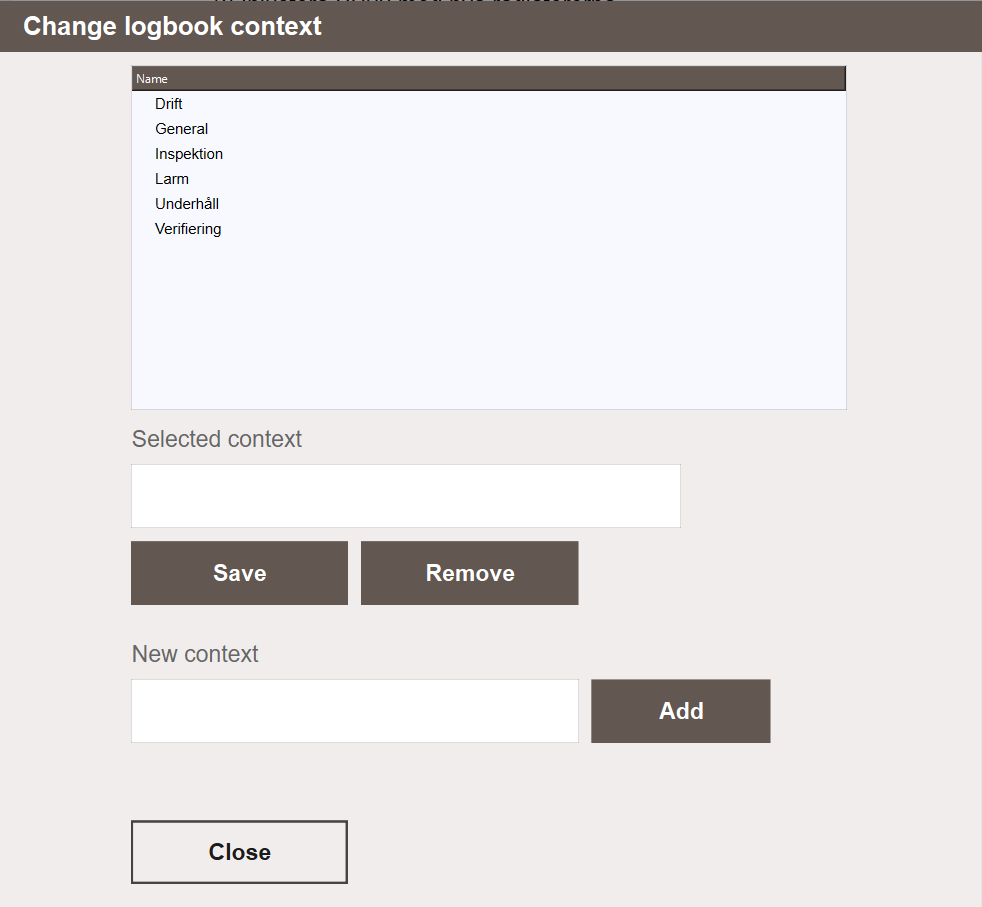
Contexts are managed from the Change logbook context popup, opened by clicking ... next to the Context field when creating or editing an entry. From there, contexts can be added, renamed and deleted. Deleting a context does not delete the entries assigned to it. Those entries remain in the logbook with no context assigned.
When filtering the logbook, selecting a context shows only entries assigned to that context, regardless of topic.
Access Patterns
Global
The full logbook under Documents & Logbook → Logbook shows all entries. The topic tree on the left narrows down to a specific area of the system, in whichever arrangement is selected. This is the primary view for operators who need to review or add notes across the whole project.
It is also the only logbook that shows connected remote systems, each under its own top node. See Logbooks of Remote Systems.
Object Popup
Every object in the project has a Logbook tab in its popup. Opening this tab selects that object in the tree and lists its entries. New entries created from here are filed against the object automatically.
The rest of the tree stays reachable, so a note on a neighbouring object or on the surrounding view can be read without leaving the popup. Entries can be added and edited from here. Archiving is offered in the global logbook only, since that is where archived entries can be shown again and restored. Archived entries are never listed in an object popup.
View-Scoped
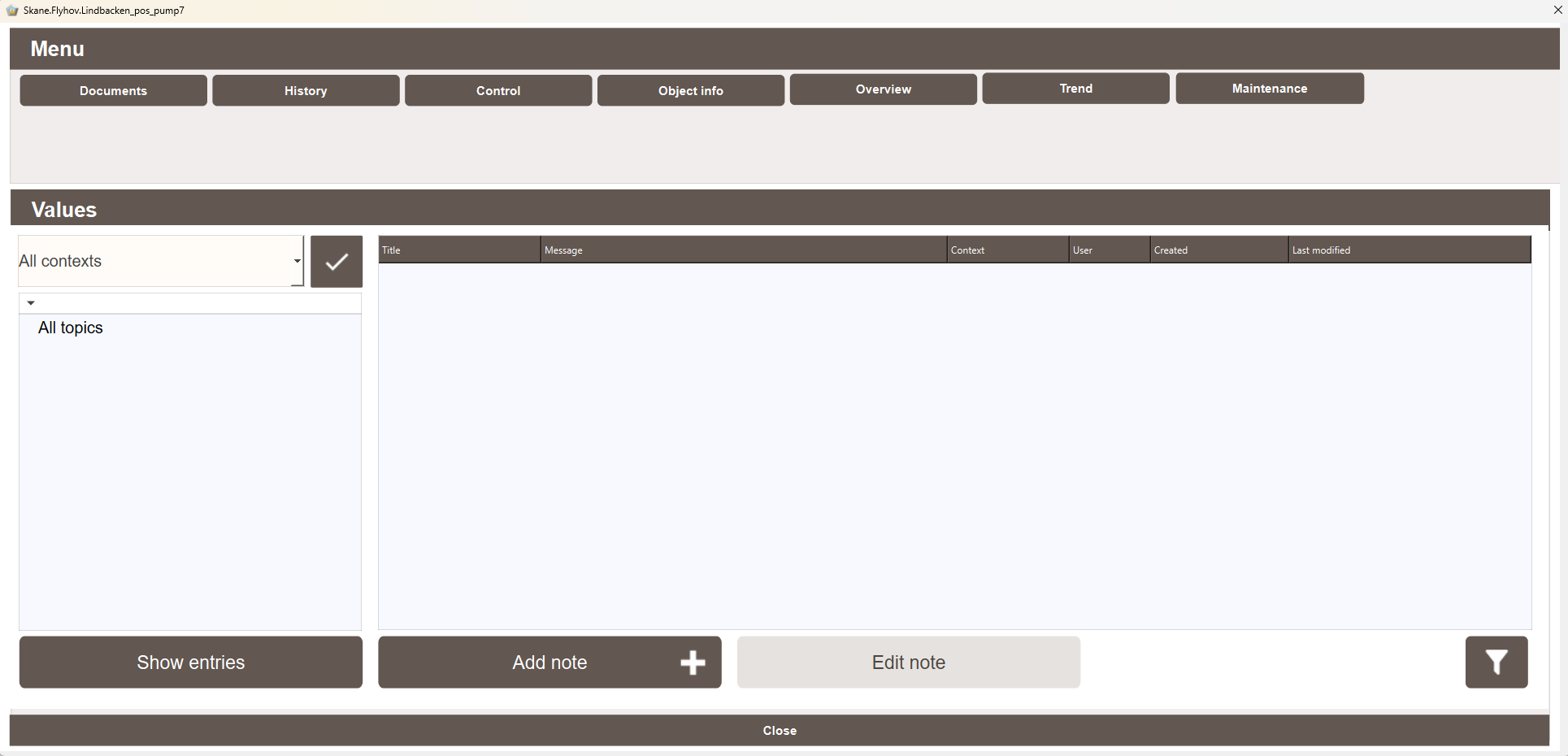
The SpeedDial menu on process views includes a button that opens the logbook with the current view selected in the tree. Its entries are listed straight away, together with those of the objects drawn in the view. New entries created from here are filed against the view.
As in the object popup, the rest of the tree stays reachable from a view-scoped logbook, so a note filed elsewhere can be read without going back to the main view.
Logbooks of Remote Systems
The global logbook shows the logbook of every connected remote system next to this system's own. Each remote system appears as a top node in the topic tree, named after the remote system as it is configured under Remote Systems. See Remote Systems.
Under that node is the remote system's own tree, arranged in the same mode as the local one and built from the remote system's own views and objects. Selecting the node itself lists every entry in that system.
The entries are not copied. They stay in the remote system's database and are read from there every time, so the node always shows the remote system's current logbook. In the Placed on column, an entry from a remote system starts with the system's name, for example Plant2: System/MySystem/Station1.
Writing to a remote system's logbook
A note created under a remote system's node is written to that system's logbook. It is filed against the view, object or topic it was created on, exactly as if it had been written on the remote system, and the remote system's operators see it in their logbook straight away. Editing, archiving and restoring an entry act on the system the entry belongs to.
- Context — once a node under a remote system is selected, the context list and the Change logbook context popup work on that system's contexts.
- User — the entry records the user logged in where the note was written. It does not record which system that was.
- Privileges — the logbook privileges of that user, on the system where the logbook is open, decide what can be done. The remote system's own privilege settings are not consulted.
Live updates
Every logbook view refreshes its tree and its entry list by itself when an entry changes. Each write increments the LogBookSync Data Store point of the system it was written to, and every logbook view listens to the point of its own system and of each remote system in its tree. An entry added on the remote system, on a web or remote client, or from another system therefore appears without reopening the view.
Requirements and limits
- The remote system is added under Remote Systems with Auto connect on startup enabled. Without it, the connection is only open while something else uses it, and the logbook does not keep it open, so the node and its live updates come and go.
- The remote system runs this version of the framework or later. A system without the logbook tables gets no node. A system without the
LogBookSyncpoint is shown, but does not update live. - A remote system that is not connected has no node. It appears the next time the tree is rebuilt after the connection is up, for example when the logbook is reopened.
- The context filter above the tree lists this system's contexts. Filtering a remote system's entries works for context names both systems use.
- A note written from here on a remote view that has never been opened on the remote system, and holds no notes yet, is first filed as a topic of its own. The remote system files it against the view at its next start. A note on an object also needs the object's view to have been opened there.
- A top-level topic of this system with the same name as a remote system is hidden behind that system's node. Give such a topic another name.
- The object popup and view-scoped logbooks show this system's logbook only.
Next Steps
- Extending — privileges, topic storage and archiving