Logbook - Get Started
Requirements
The following scripts are required to use Logbook and all related functionality covered in the Logbook guides:
scLogBookscPrototypesscAlert
The Logbook is available in the main menu under Documents & Logbook → Logbook.
The Logbook View
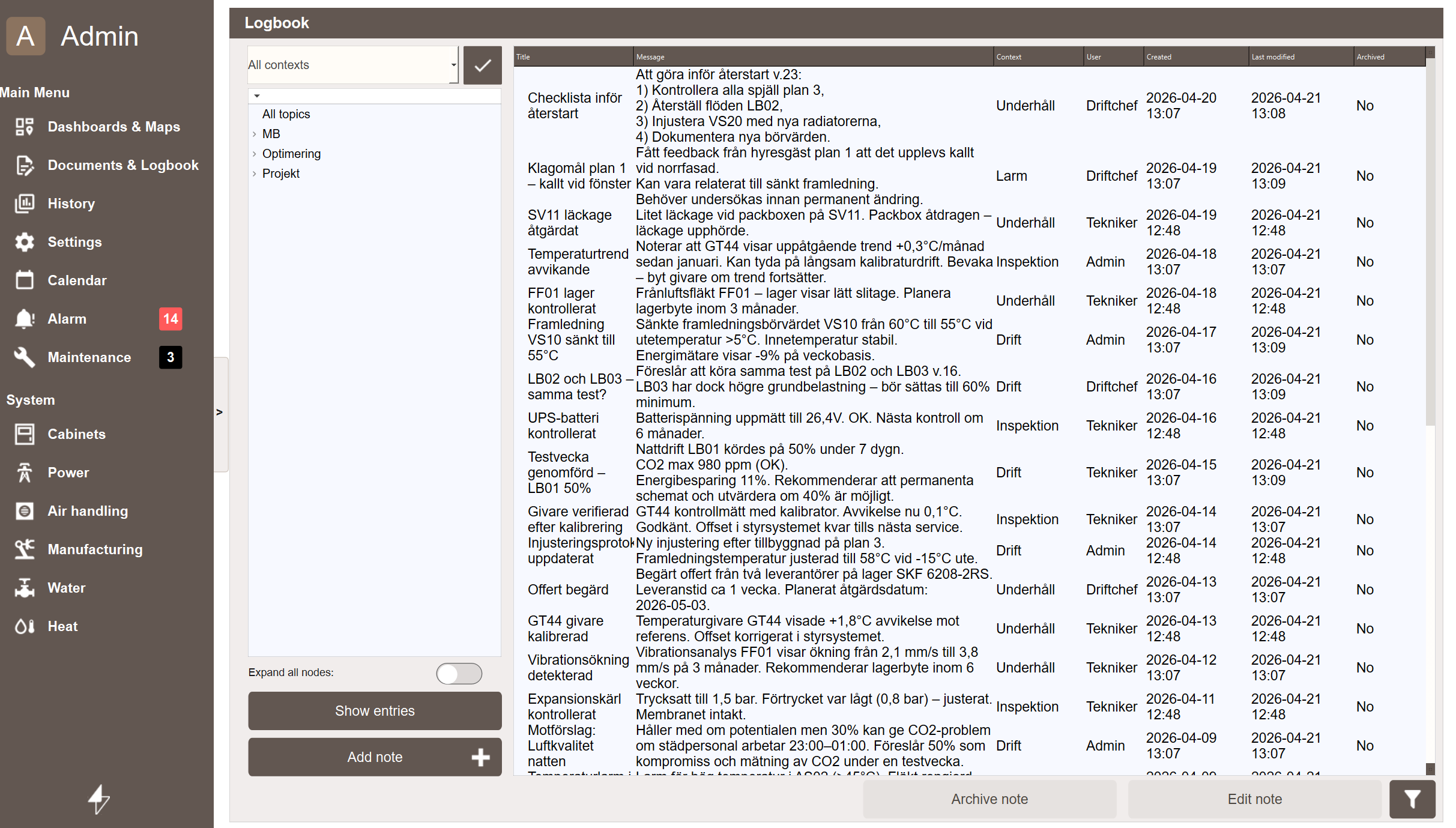
The logbook view has two panels. The left panel shows the topic tree, a hierarchical list of every topic that has at least one entry. Selecting a node and clicking Show entries loads all entries under that topic into the entry list on the right. Selecting All topics at the top of the tree shows all entries.
Selecting a node includes everything filed below it. Selecting a view node lists the notes on that view together with the notes on the objects drawn in it, so a whole plant section can be reviewed in one step.
When remote systems are connected, each one appears as a top node in the tree, named after the remote system. Under it is that system's own logbook, arranged the same way as the local tree, and notes can be read and written there. See Logbooks of Remote Systems.
The tree and the entry list refresh by themselves when an entry is added, edited or archived anywhere: here, on a web or remote client, or on a connected system.
The entry list shows the following columns: Title, Placed on, Message, Context, User, Created, Last modified and Archived.
Placed on reports what the entry is actually filed against, independent of how the tree is currently keyed. A view is shown by its path without the .kvie extension, an object by its tag, and an operator's own sub-topic is appended after the identifier. This matters because the same entry appears under different nodes in the two tree modes, and this column is the one place that always names the entry's real anchor.
Select an entry and click Edit note to open it for editing, or Archive note to move it out of the active list. An archived entry is kept in the database and hidden from the list rather than removed, and the same button restores it once archived entries are shown.
Entries are archived, not deleted
There is no per-entry delete. The only action that removes logbook content permanently is delete all archived notes in the settings view, which clears every archived entry at once. See Archiving.
Switching How the Tree Is Keyed
The toggle labelled Navigate by workviews above the tree switches between the two ways of arranging the same entries.
- On, workview mode — the tree follows the folder structure of the process views, for example System → MySystem → Station1. This is the arrangement to use when looking for notes about a part of the plant as it is drawn in the views.
- Off, signal mode — the tree follows the tag path, for example MB → AS01 → Station1. This is the arrangement to use when looking for notes about a specific tag, regardless of which views it appears in.
No entry is hidden by the choice. The two modes are two arrangements of the same set, so a note reachable in one is reachable in the other, usually under a different node. An entry filed on a topic of the operator's own choosing keeps its own path in both modes.
The setting is shared with the logbooks opened from an object popup or from a process view, so the preferred arrangement follows the operator around the project. It returns to workview mode when the application restarts.
Why one note can appear under several nodes
A note filed on an object belongs to every view that object is drawn in, and a note filed on a view belongs to the objects drawn in it. A pump that appears in two views therefore shows its notes under both, and a note written on a view is found again when searching by tag. See How the Two Trees Are Built.
Creating an Entry
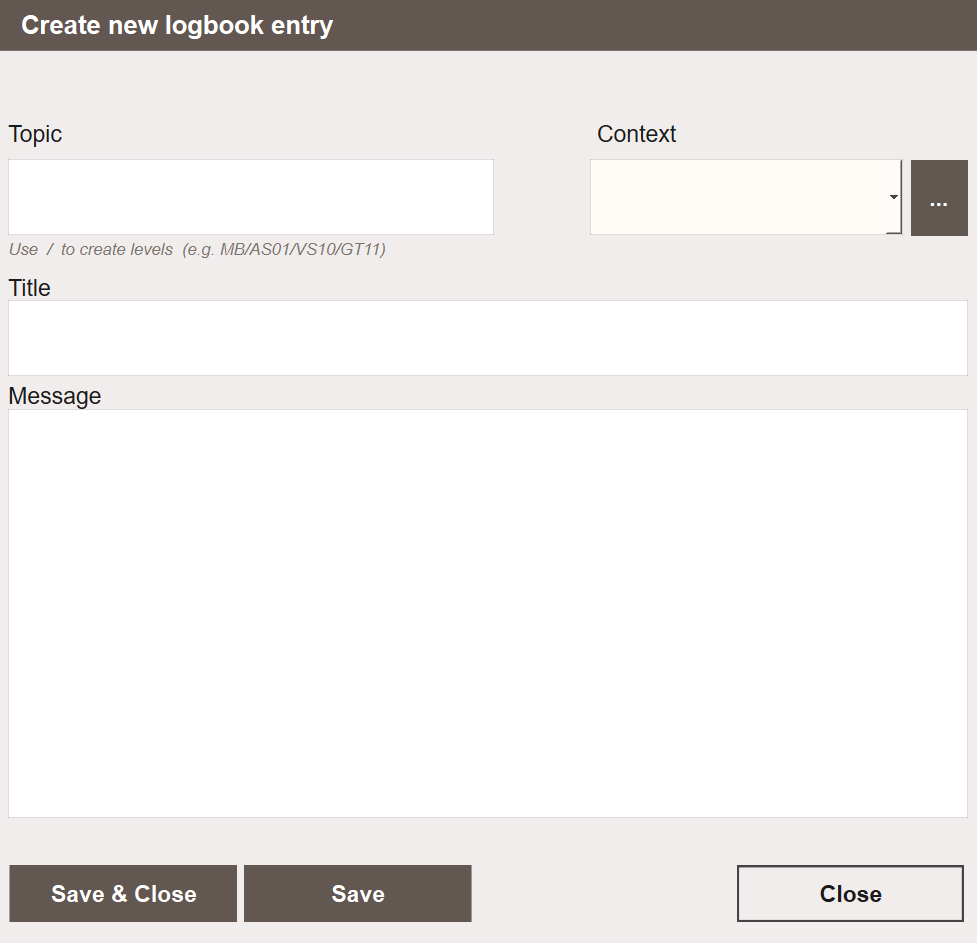
Click Add note to open the Create new logbook entry popup. Fill in the following fields:
- Topic — what the entry is filed against. When the logbook was opened from an object or from a process view, this is filled in already and normally needs no change.
- Context — an optional grouping label. Click ... to manage available contexts.
- Title — a short headline for the entry.
- Message — the full text of the note.
Click Save to save and continue, or Save & Close to save and close the popup. The entry appears immediately at the top of the entry list, and under the node it belongs to in both tree modes.
An entry created from a node in the tree is filed against whatever that node stands for. Creating one from a view node files it on the view, and creating one from an object node files it on the object.
Filtering
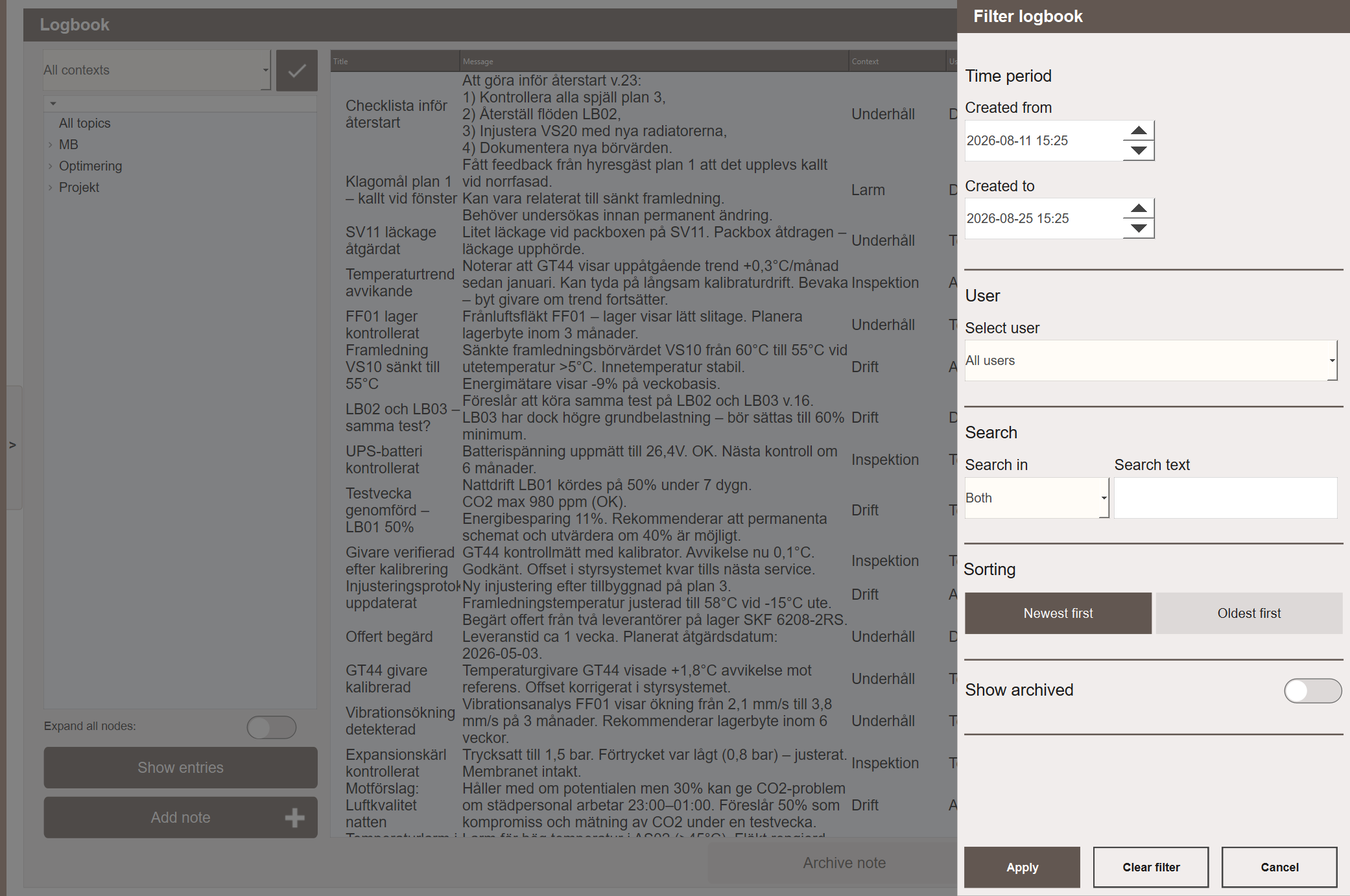
Click the filter icon to open the Filter logbook panel. Available filters:
- Time period — filter by creation date range (Created from / Created to)
- User — show entries from a specific user only
- Search — search by text in the title, the message, or both
- Sorting — newest first or oldest first
- Show archived — include archived entries in the list. Archived entries are hidden until this is enabled.
Click Apply to apply the filters, Clear filter to reset, or Cancel to close without changes.
Next Steps
- Configuring — what entries are filed against, how the trees are built, contexts, access patterns and the logbooks of remote systems
- Extending — privileges, topic storage and archiving